Mobile Check-in with Events App

Use your iPhone or iPad camera to scan invitee barcodes at your event.

Written by Enrique Deolarte

Last published at: June 17th, 2026

Mobile Check-in with Events App


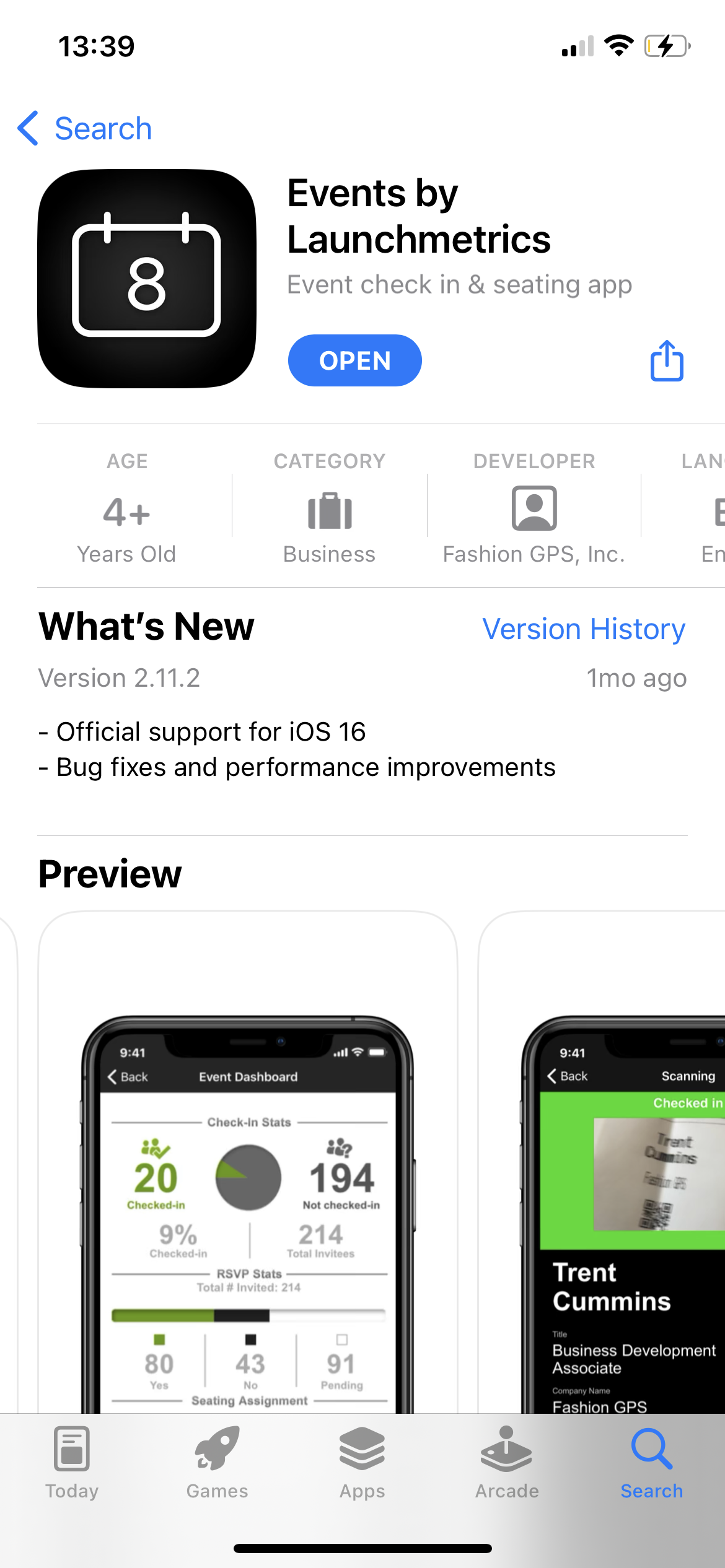
Download the latest version of Events from the App Store to use the new Camera Scanning App for Check-In. 

This can be accessed using the following link: Events App by Launchmetrics


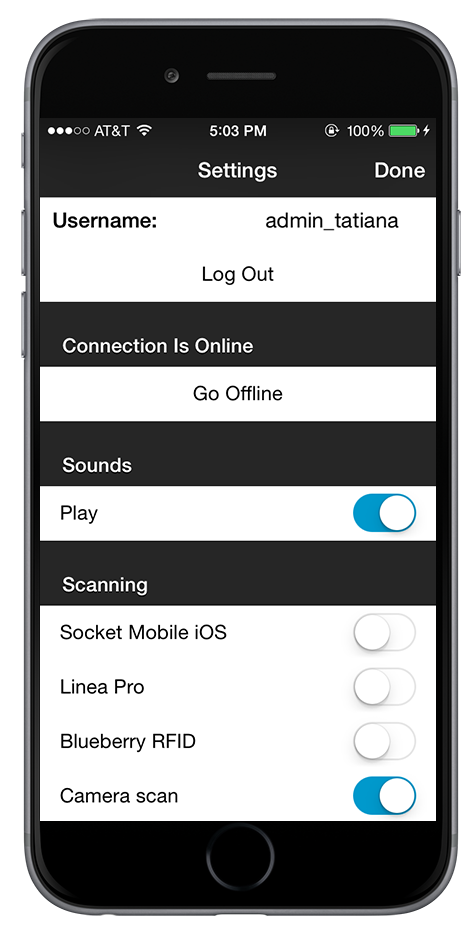
To enable camera scanning, navigate to Settings. You will now have the option to select Socket Mobile iOs, Linea Pro, Blueberry RFID, or Camera Scan.Move the toggle from left to right to active camera scanning.


Delete

Note: You can "LOCK" an event within the Ipad app, using the padlock at the top of the screen. When managing your event check-in, you may have people assisting or participating in the check-in process that are not part of your core team. If you have privacy concerns around other events you are managing, this feature allows you to lock the interface so that the person who is helping you to check-in, can only access a single event.


To scan your invitees using your camera, select "Scanning" from the Event Menu. Hold your camera lens over the invitee's barcode and you will receive a confirmation once the barcode has been scanned.


If the barcode can not be recognized you will receive an error message. 

Click here to learn how to enable and create a Welcome email template that will automatically be sent to invitees who have been marked as attended using the Events app.